The Sticky Video Element allows you to effortlessly incorporate video content into your website, based on the native Bricks Video Element. With this powerful tool, you can display any type of video content, including YouTube, Vimeo, and Self-Hosted videos, to captivate your audience and increase website engagement. Moreover, the sticky feature allows the video to remain visible even as users scroll through your website, ensuring maximum exposure and impact.
Content Options
Controls the video source and playback behavior.
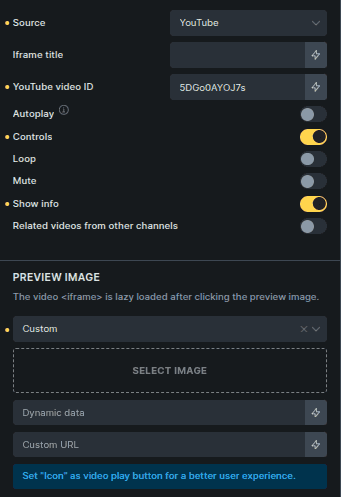
Option | Description |
|---|---|
Source | Selects where the video comes from (YouTube, Vimeo, Media, File URL, or Dynamic Data). |
Additional options appear based on the selected Source.
YouTube
Option | Description |
|---|---|
Iframe Title | Accessibility title for the YouTube iframe. |
YouTube Video ID | ID of the YouTube video to display. |
Vimeo
Option | Description |
|---|---|
Iframe Title | Accessibility title for the Vimeo iframe. |
Vimeo Video ID | ID of the Vimeo video to display. |
Vimeo Privacy Hash | Privacy hash for private Vimeo videos. |
Media
Option | Description |
|---|---|
Select File | Selects a video from the media library. |
Preload | Controls how the video loads before playback. |
File URL
Option | Description |
|---|---|
Video File URL | Direct URL to the video file. |
Preload | Controls how the video loads before playback. |
Dynamic Data
Option | Description |
|---|---|
Select Dynamic Data | Uses dynamic data as the video source. |
Preload | Controls how the video loads before playback. |
Playback
Option | Description |
|---|---|
Autoplay | Starts playing the video automatically. |
Loop | Replays the video when it ends. |
Mute | Mutes audio by default. |
Play Inline | Plays the video inline on mobile devices. |
Controls | Shows or hides video controls. |
Custom Video Player | Enables a custom-styled video player. |
Poster Image | Image shown before the video plays. |
Overlay / Icon
Controls the video overlay and play icon.
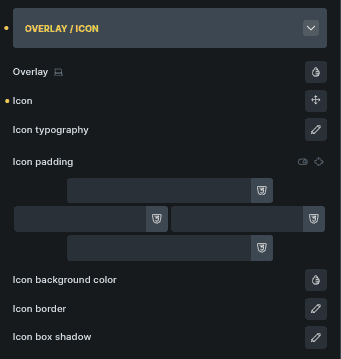
Option | Description |
|---|---|
Overlay | Sets a color overlay on the video. |
Icon | Icon displayed over the video. |
Icon Typography * | Controls the size and styling of the icon. |
Icon Padding * | Adds inner spacing around the icon. |
Icon Background Color * | Sets the background color behind the icon. |
Icon Border * | Adds a border around the icon. |
Icon box shadow * | Applies shadow to the icon for depth. |
Settings marked with * are shown only when Icon is selected.
Sticky Settings
Controls when and how the video becomes sticky.
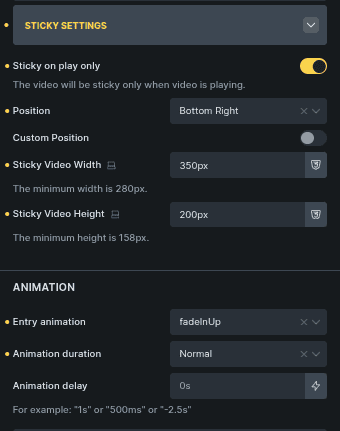
Option | Description |
|---|---|
Sticky on Play Video | Makes the video sticky only while it is playing. |
Position | Sets the screen corner for the sticky video. |
Custom Position | Enables custom positioning. |
Sticky Video Width | Sets the width of the sticky video. |
Sticky Video Height | Sets the height of the sticky video. |
Entry Animation | Animation used when the video becomes sticky. |
Animation Duration | Controls animation speed. |
Animation Delay | Adds a delay before the sticky animation starts. |
Sticky Close Button
Controls the close button shown on the sticky video.
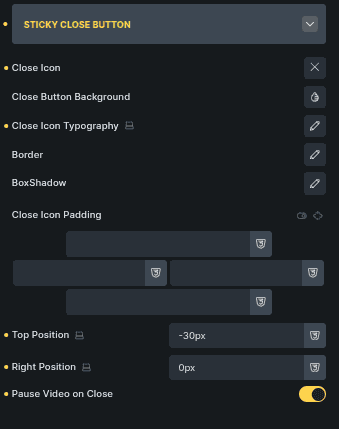
Option | Description |
|---|---|
Close Icon | Icon used for the close button. |
Close Button Background | Background color of the close button. |
Close Icon Typography | Controls size and styling of the icon. |
Border | Adds a border around the close button. |
Box Shadow | Applies shadow to the close button. |
Close Icon Padding | Adds inner spacing around the icon. |
Top Position | Adjusts the vertical position of the close button. |
Right Position | Adjusts the horizontal position of the close button. |
Pause Video on Close | Pauses the video when the sticky player is closed. |