The Tilt Extension adds interactive 3D tilt effects to elements, responding to cursor movement to create depth, motion, and engaging hover interactions.
How to enable?
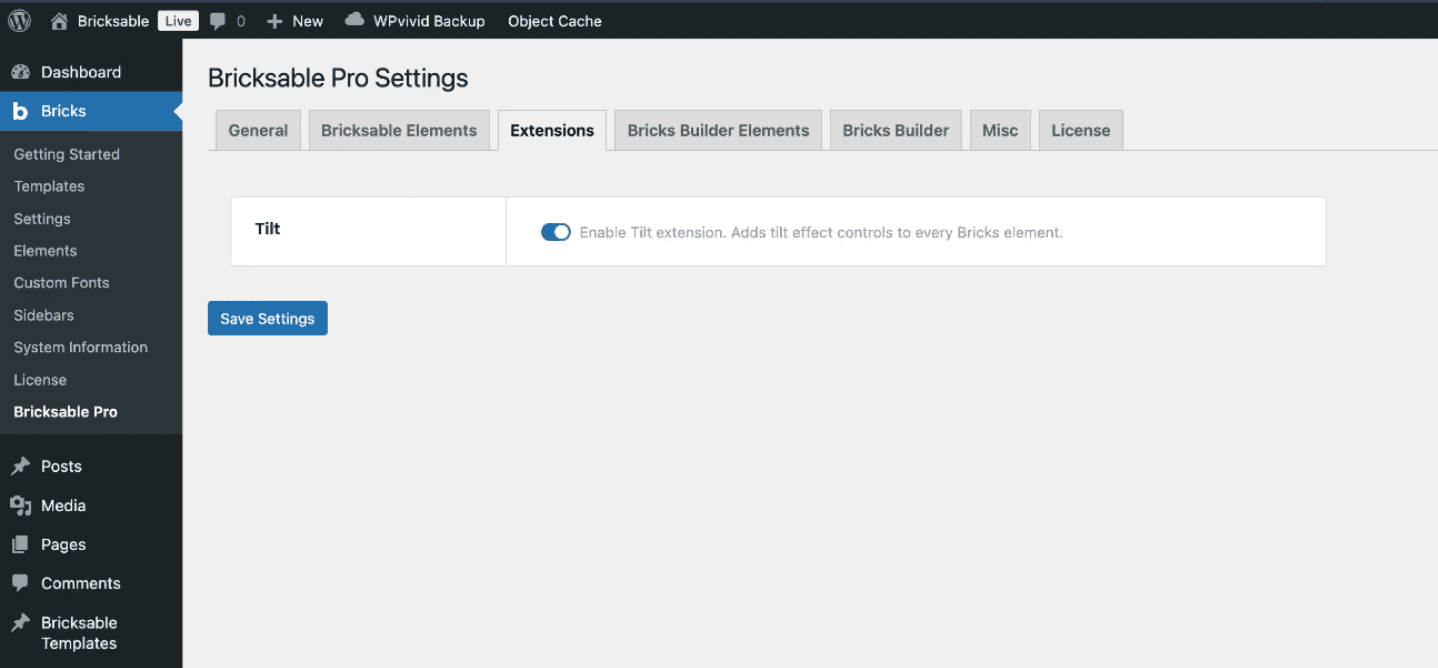
To enable the Tilt extension, navigate to Bricks > Bricksable Pro > Extensions in your WordPress dashboard and toggle on the Tilt extension.
Once enabled, you will see the Tilt options under the Style Options tab in the Bricks builder.
Style Options
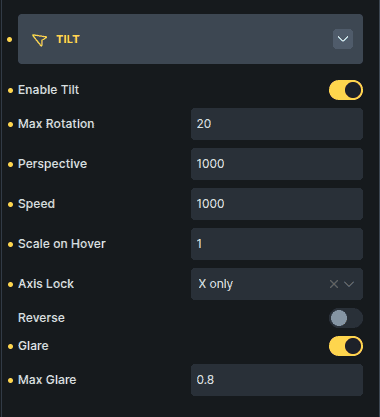
Controls how the tilt effect behaves and appears.
Option | Description |
|---|---|
Enable Tilt | Enables the tilt effect on the element. |
Max Rotation | Sets the maximum tilt angle when the cursor moves across the element. |
Perspective | Controls the depth of the 3D tilt effect. |
Speed | Adjusts how quickly the element responds to cursor movement. |
Scale on Hover | Applies a zoom effect when the element is hovered. |
Axis Lock | Restricts tilt movement to the X-axis, Y-axis, or allows movement on both axes. |
Reverse | Reverses the tilt direction relative to cursor movement. |
Glare | Adds a lighting reflection effect that moves with the tilt. |
Max Glare | Controls the intensity of the glare lighting effect. |
Max Glare appears only when Glare is enabled.
Notes on Behavior
The tilt effect responds to cursor position, creating a dynamic 3D interaction.
Perspective controls how dramatic the depth appears.
Axis Lock is useful for creating more controlled interactions.
The Glare option simulates realistic light reflections during tilt.